
Inserting the SIM Card
If you will operate the LTE version without connectivity ordered, plug your SIM card in first — OTHERWISE SKIP THIS STEP
To successfully change the SIM card and configure the APN, please follow these steps carefully. Adhere to this guide to ensure the process is completed correctly.
The new SIM card used in the Scout must not be protected by a PIN code.
Step-by-Step Guide:
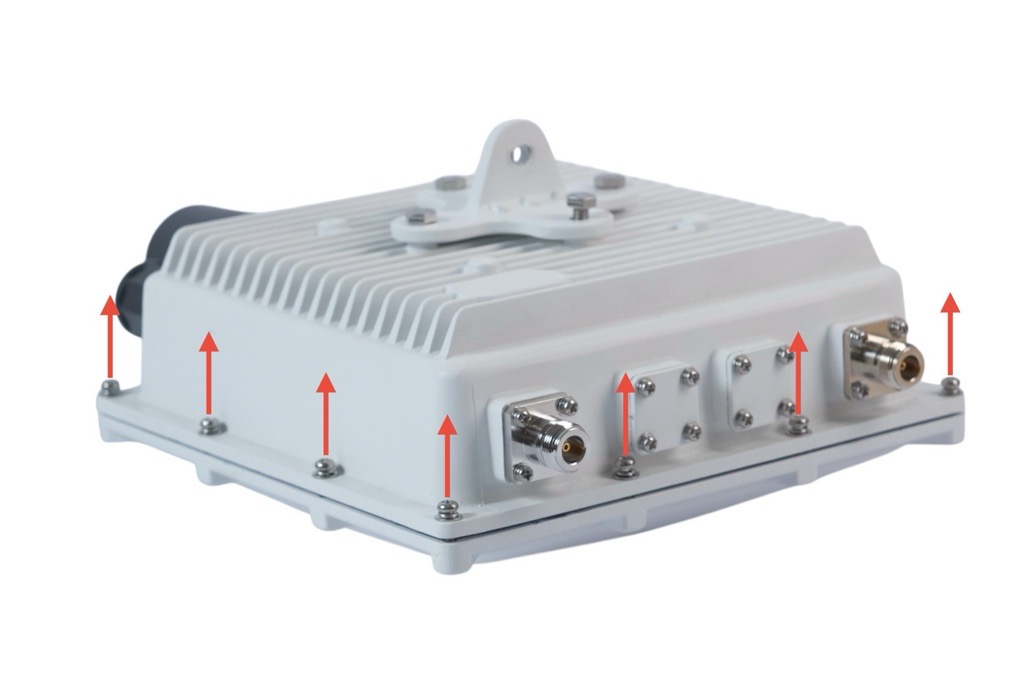
-
Disconnect the Scout from the Ethernet connection (which also serves as the power source).
-
Unscrew all 12 bolts around the device perimeter.
Use a screwdriver that fits the bolts correctly to avoid damage. -
Carefully flip the device over.
-
Remove the cover and disconnect the micro-USB cable inside the device (1).
Before plugging the micro-SIM card in, ensure the SIM card works by testing it in a mobile phone to verify it is active and has no PIN lock.
Do not use a triple-cut (multi-size punch-out) SIM card. The stepped edges can catch on the connector contacts and damage them — use a proper single-size micro-SIM.
- Gently slide the micro-SIM card into the connector (2) — do not press on it or attempt to open the connector.
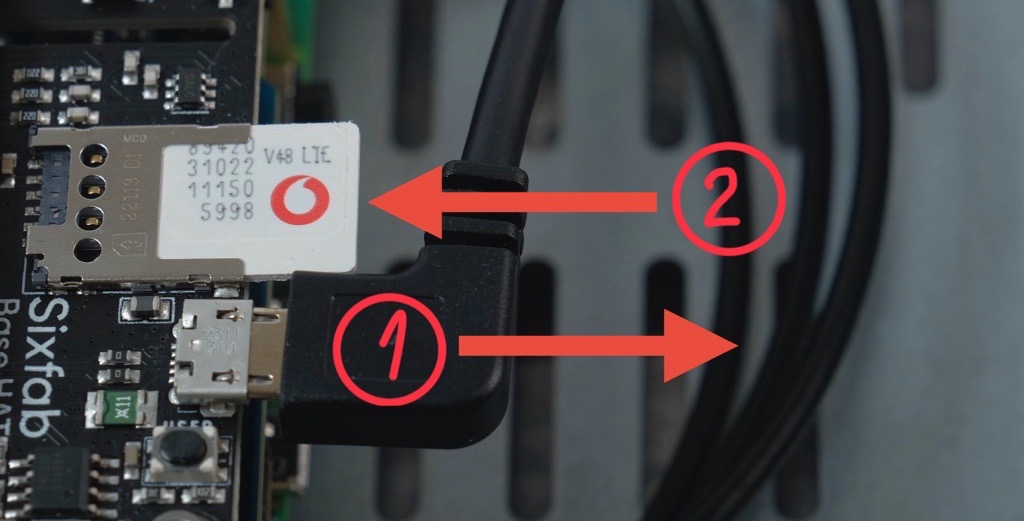
- Reconnect the micro-USB cable to the same connector it was disconnected from in step 4.
Do not skip this step. If the micro-USB cable stays disconnected, the LTE option will not appear in the management interface and the modem will not work.
- Verify Functionality:
There are two options to verify the SIM card functionality:
- If you use your Scout in Sensor Mode, connect the Scout to your local network and check its LTE status on the network management page.
- If you use your Scout in Cloud Mode, you can view the LTE status in the Dronetag App.
⚙️ LTE Configuration & Setup
Further configuration of LTE connectivity and APN (if needed) is covered in our Networking Guide:
📘 SIM Card Installation and LTE Setup
✅ Verify LTE Functionality
To confirm whether the Scout has connected to the mobile network, follow the instructions in the networking section:
🔍 Verify Functionality and LTE
- Reassemble the Device:
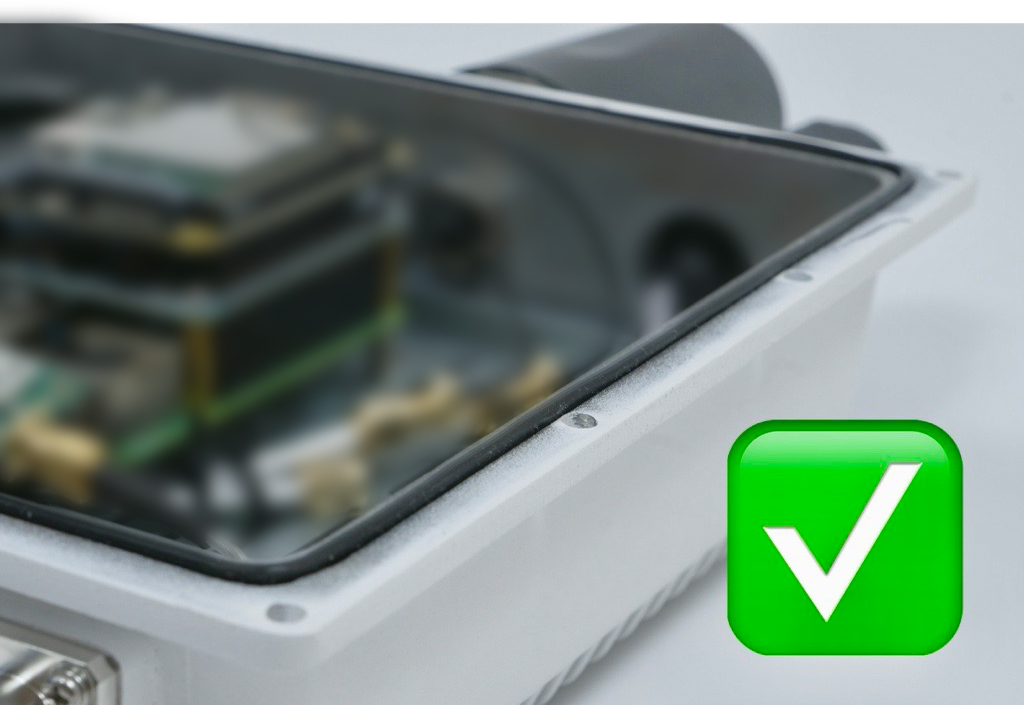
After confirming the device is functioning correctly, reattach the cover, carefully flip the device over, and tighten the 12 bolts (refer back to Step 2).
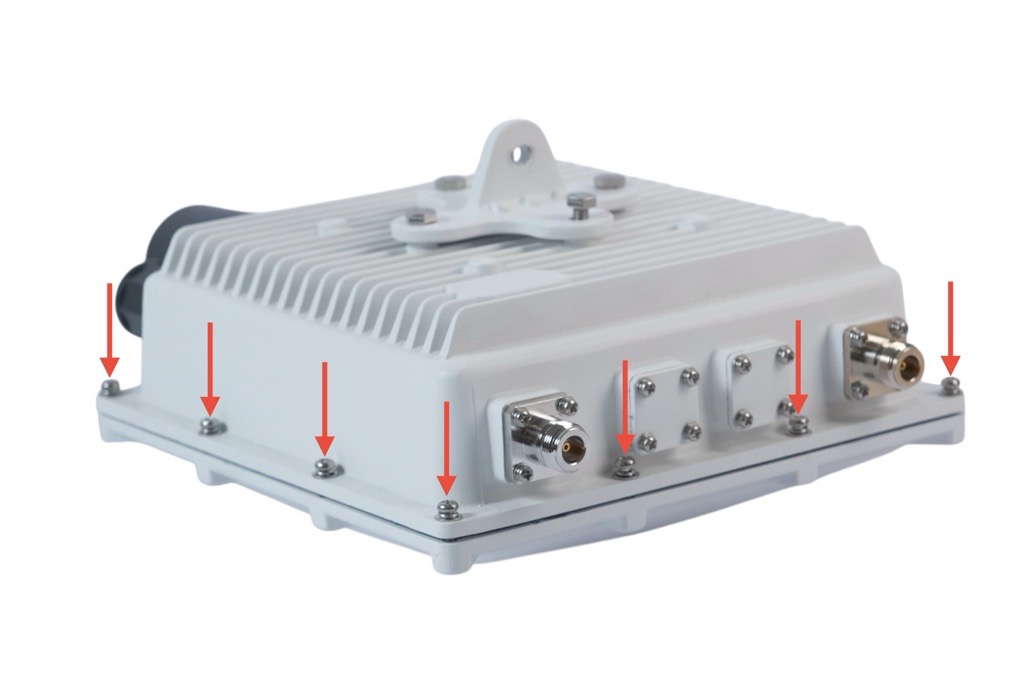
Pay special attention to assembling the device properly to prevent water ingress and avoid damaging the device.
Take extra care about the correct position of the sealing.
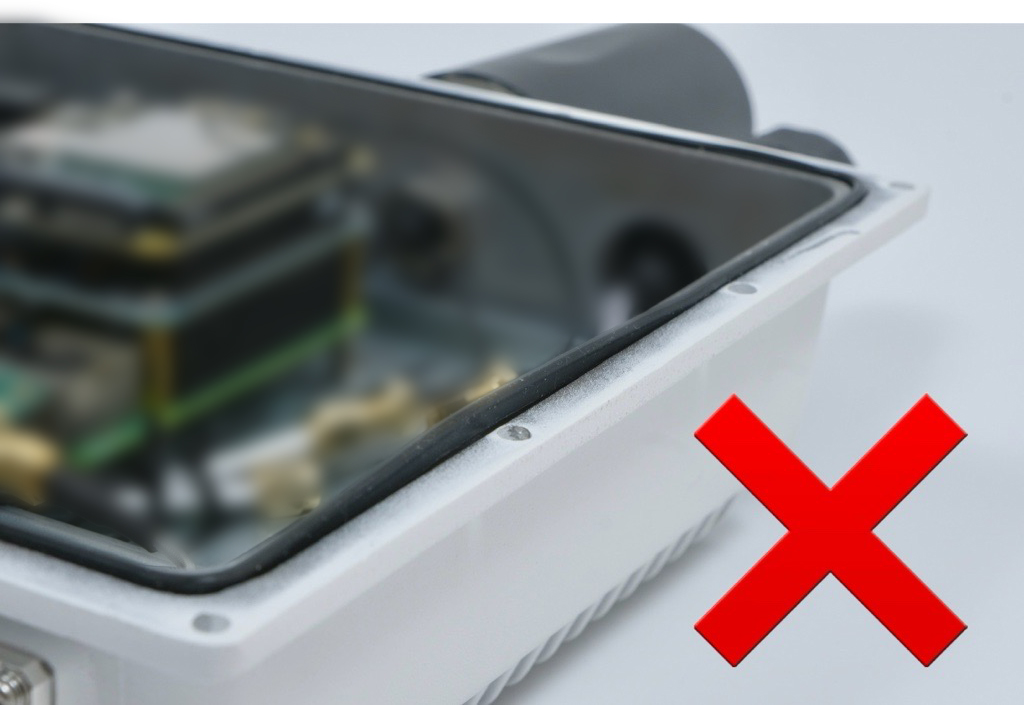
Custom SIM Card Requirements
Dronetag Scout supports custom LTE SIM cards for independent connectivity. While the hardware is globally compatible, successful operation depends on your carrier’s plan and network policies.
Verified US Carriers
The following networks have been successfully tested and verified:
- AT&T
- T-Mobile
- Verizon
Critical Connectivity Restrictions
1. IMEI Whitelisting (Carrier Certification)
- Some carriers (especially for tablet or hotspot-specific plans) enforce an IMEI lock.
- Dronetag Scout utilizes a Quectel modem that is not certified under specific carrier-proprietary programs (such as Verizon Open Development or AT&T IoT Certification).
- If your plan is restricted to "certified devices only," the carrier will reject the connection based on the Scout's IMEI.
Solution: Use a "Bring Your Own Device" (BYOD) plan or a generic data/IoT plan that does not enforce hardware whitelisting.
2. FirstNet Incompatibility
- Dronetag Scout is not compatible with FirstNet SIM cards. The hardware does not support the specific bands or protocols required for this network.
3. Phone Plans vs. Data-Only Plans
- Avoid using SIM cards from standard smartphone plans. Carriers often detect the modem and block data or throttle it under hotspot/tethering limits.
Solution: Use dedicated data-only, mobile broadband, or IoT/M2M plans.
Network & Performance Tips
- LTE Only: Ensure your SIM supports 4G/LTE. SIM cards provisioned exclusively for 5G Standalone (SA) networks will not function in the Scout.
- Local vs. Roaming SIMs: Global/roaming SIMs (e.g., Hologram, Emnify) work but may introduce higher latency. For time-critical operations, a local carrier SIM is recommended.
- Coverage: Ensure your carrier provides LTE coverage in your area. Note that some carriers (like T-Mobile) use specific bands (e.g., B71) for rural coverage that may differ from standard phone reception.
Pre-Installation Checklist
- Disable PIN: Use a smartphone to ensure the SIM card has no PIN code lock enabled.
- Verify Data: Confirm the SIM has an active data balance in another device.
- APN Settings: Obtain the correct APN (Access Point Name) from your provider. You will need to enter this in the Dronetag App during configuration.
Quick Troubleshooting
If the Scout fails to connect despite a valid SIM:
- Contact your carrier to verify the plan isn't locked to a specific IMEI
- Request the carrier to switch your line to a "Generic/BYOD" data profile