
Integrations
- Document
- Dronetag App — Integrations
- Chapters
- 3
- Source
- help.dronetag.cz/print/dronetag-app/integrations
Integrating DJI AeroScope with Dronetag
DJI AeroScope detects nearby DJI drones and their operators. By pointing your AeroScope at Dronetag, its detections appear in the Dronetag App alongside your other data — no extra hardware required.
This integration is available to existing customers and is set up individually for each unit.
If you have a DJI AeroScope (Mobile or Stationary) and would like to connect it to Dronetag, contact us at support@dronetag.com and we will enable it for your unit.
This is an early integration and will be improved over time. For now:
- Detected drones are shown as Remote ID (Wi‑Fi Beacon) signals.
- The AeroScope itself appears in the Dronetag App as a Dronetag Scout device.
- The location of the AeroScope is not shown on the map — reporting the receiver's own position is not supported yet, for technical reasons.
What you need
- A DJI AeroScope unit — Mobile or Stationary (AS-F1800).
- The serial number of your AeroScope. You send this to us so we can add your unit. You can find it in DJI Assistant 2 → Device Status, or on the label on the unit itself.
How to integrate
Contact Dronetag support
Email support@dronetag.com with the serial number of your AeroScope. Once we confirm the serial and add it on our side, your AeroScope can be registered in the Dronetag App like any other Dronetag device.
Open the Server Network Settings
Connect your AeroScope to DJI Assistant 2 (via the same router, or a direct Ethernet connection) and open Network Settings → Server Network Settings.

Point the AeroScope at Dronetag
In Server Network Settings, enter the following, then click Settings to save and Refresh to confirm:
Field Value IP Address aeroscope.dronetag.appPort Number 9090Confirm the connection
Once configured, your AeroScope connects to Dronetag. Any DJI drone it detects appears in the Dronetag App as a Remote ID (Wi‑Fi Beacon) signal.
Manuals
For the full setup of the unit itself (antennas, power, and network mode), follow the DJI manual for your model:
Integrating Dronetag with Aloft
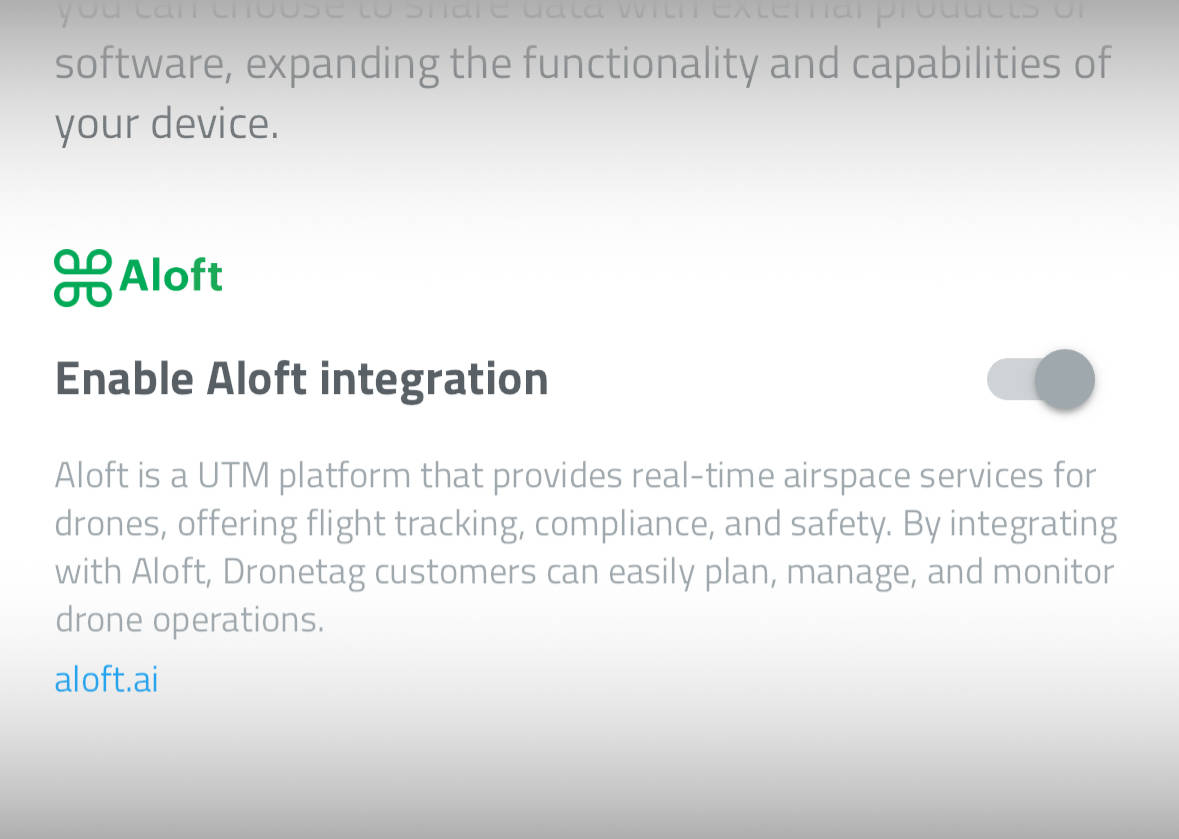
Aloft Air Control is a platform designed for managing drone operations, providing real-time airspace authorizations (LAANC), flight logging, and situational awareness to help ensure safe and compliant drone flights. By integrating Dronetag with Aloft, you can automatically share your Remote ID data, streamlining airspace management without needing any technical expertise.
This integration enables Dronetag users to send both public and private flight data to Aloft, making it easier to manage airspace authorizations and track drone activities. All you need are active Dronetag and Aloft accounts to set up the connection.
How to Integrate
Sign in to your Aloft account and obtain your API key
- Sign in to the Aloft Air Control web dashboard.
- Go to Manage > Connections, then select Add Connection > Dronetag.
- Choose the relevant pilot.
- Copy the generated Dronetag token.
For more detailed steps, visit the Aloft guide.
Log into your Dronetag account using the Dronetag App
Open the Dronetag App on iOS, Android, or through the web interface. Sign in to your account and navigate to the Profile section, where you’ll find the Integrations screen.
Enable the Aloft integration
Within the Integrations screen, locate and activate the Aloft integration option. When prompted, input the API key you obtained from Aloft in Step 1.
Once these steps are completed, your flight data will be automatically shared with Aloft. Both public and private flight information will be accessible on Aloft’s Air Control platform, allowing you to manage your operations more efficiently.
Integrating Dronetag with SafeSky
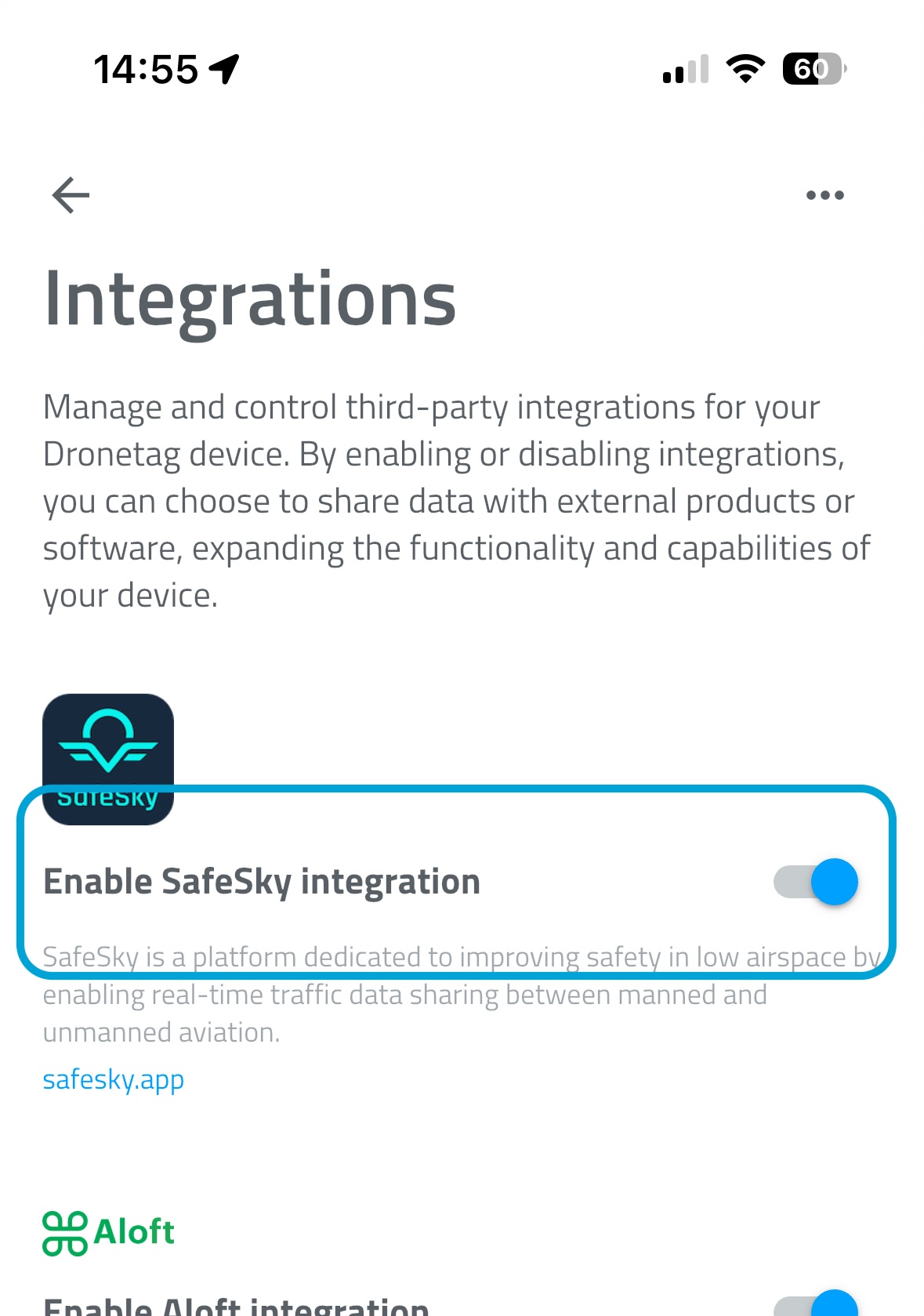
SafeSky is a platform dedicated to improving safety in low airspace by enabling real-time traffic data sharing between manned and unmanned aviation. By integrating with SafeSky, Dronetag users can broadcast their drone’s position and become visible to over 30 traffic sources, including general aviation pilots, ultralights, paramotors, paragliders, gliders, and more.
As a Dronetag pilot, you can also download the SafeSky app to view nearby manned traffic during your flight, enhancing your flight situational awareness.
How to Integrate
Log into your Dronetag account using the Dronetag App
Open the Dronetag App on iOS, Android, or through the web interface. Sign in to your account and navigate to the Profile section, where you’ll find the Integrations screen.
Enable the SafeSky integration
Within the Integrations screen, locate and activate the SafeSky integration option.
Turn on your Dronetag Mini device
After you enabled the integration, you can now see your Dronetag devices in the SafeSky app. You may need to create a new flight before it appears in SafeSky. If you enabled the integration while your Dronetag Mini was already in-flight, stop the flight with a short press and press it again to start a new flight.
Source pages
Every chapter of this document is a page of the Dronetag help site. Use these addresses to reach the latest version.
- 1Integrating DJI AeroScope with Dronetaghelp.dronetag.cz/dronetag-app/integrations/aeroscope
- 2Integrating Dronetag with Alofthelp.dronetag.cz/dronetag-app/integrations/aloft
- 3Integrating Dronetag with SafeSkyhelp.dronetag.cz/dronetag-app/integrations/safesky