
Connectivity Plan for RIDER
- Document
- Dronetag App — Connectivity Plan for RIDER
- Chapters
- 3
- Source
- help.dronetag.cz/print/dronetag-app/subscriptions/RIDER
Checking Connectivity Plan Status
You can check your current Connectivity Plan status anytime in the Dronetag App (mobile or web):
Option 1 – From Home Screen
On the home screen with the map, tap your RIDER profile card to open the device detail screen.
You’ll see the current state of your Connectivity Plan usage.
Option 2 – From Profile
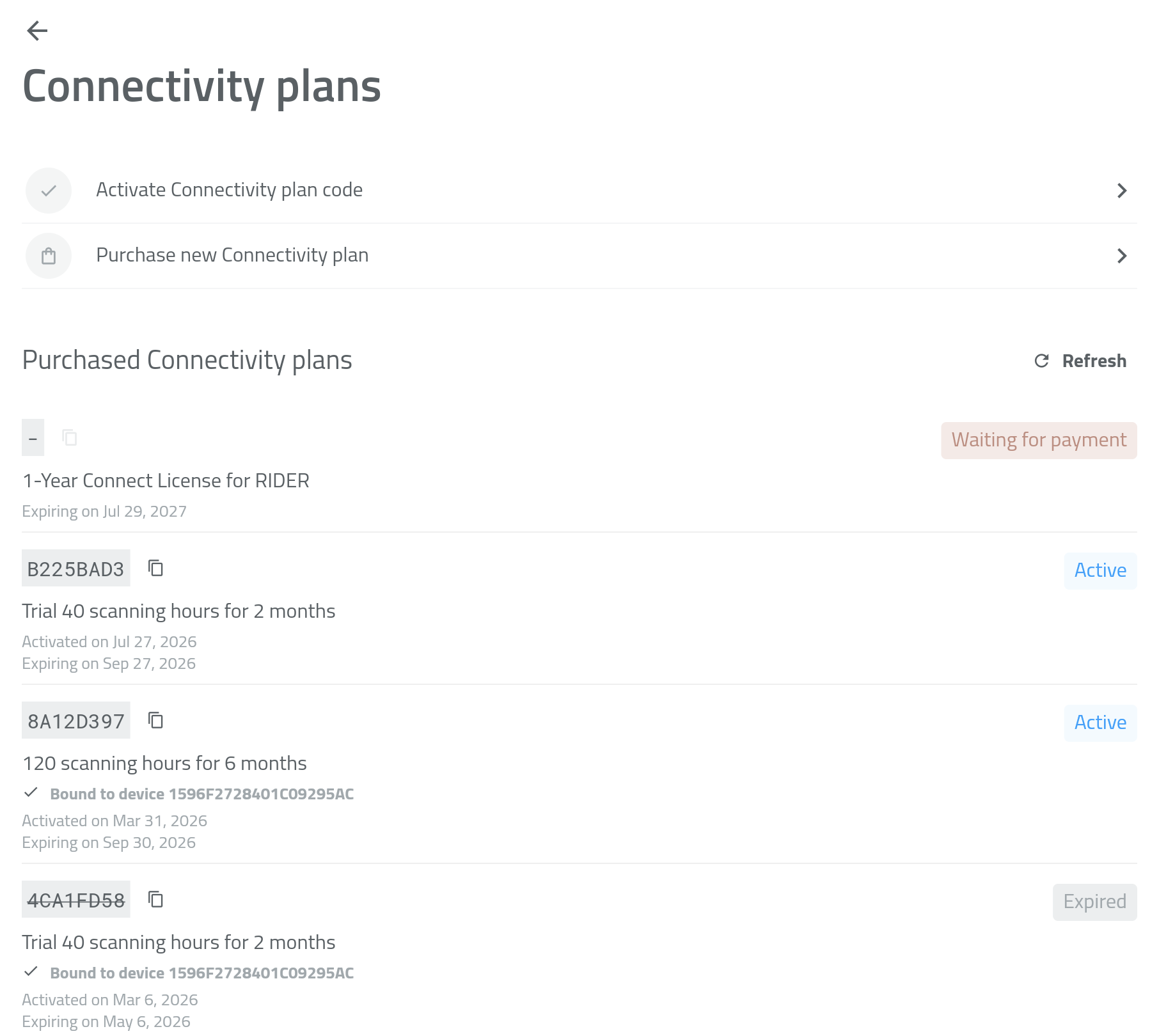
Open Profile → Account Details, where you’ll find a list of all your active, expired, or pending bundles.
What Happens When Connectivity Plan Expires
Once your Connectivity Plan runs out or expires:
- Cloud data storage is paused
- RIDER switches to Offline Mode
You can still scan drones via Bluetooth with the Drone Scanner (Gen. 2) app. Just don't forget to turn the LTE feature off in your RIDER's Configuration page in the Dronetag app.
To continue detecting in Online Mode, activate a new Connectivity Plan.
Learn how in the Purchasing a Connectivity Plan chapter.
Questions & Support
If you have any questions about your Connectivity Plan or account, we’re happy to help.
Contact our support team or email us directly at support@dronetag.com.
We’re here to make your Dronetag experience seamless.
Purchasing a Connectivity Plan
A Connectivity Plan lets your RIDER stay connected to the Dronetag Cloud via its built-in LTE SIM.
It enables:
- Real-time data sync
- Detection storage and history
- Remote monitoring
- API and third-party integrations
You can purchase and activate a Connectivity Plan directly in the Dronetag App (mobile or web).
A Dronetag account is required for activation.
Before purchasing, make sure you’ve used your 2-month free trial that comes with every new RIDER.
How to Purchase a Connectivity Plan
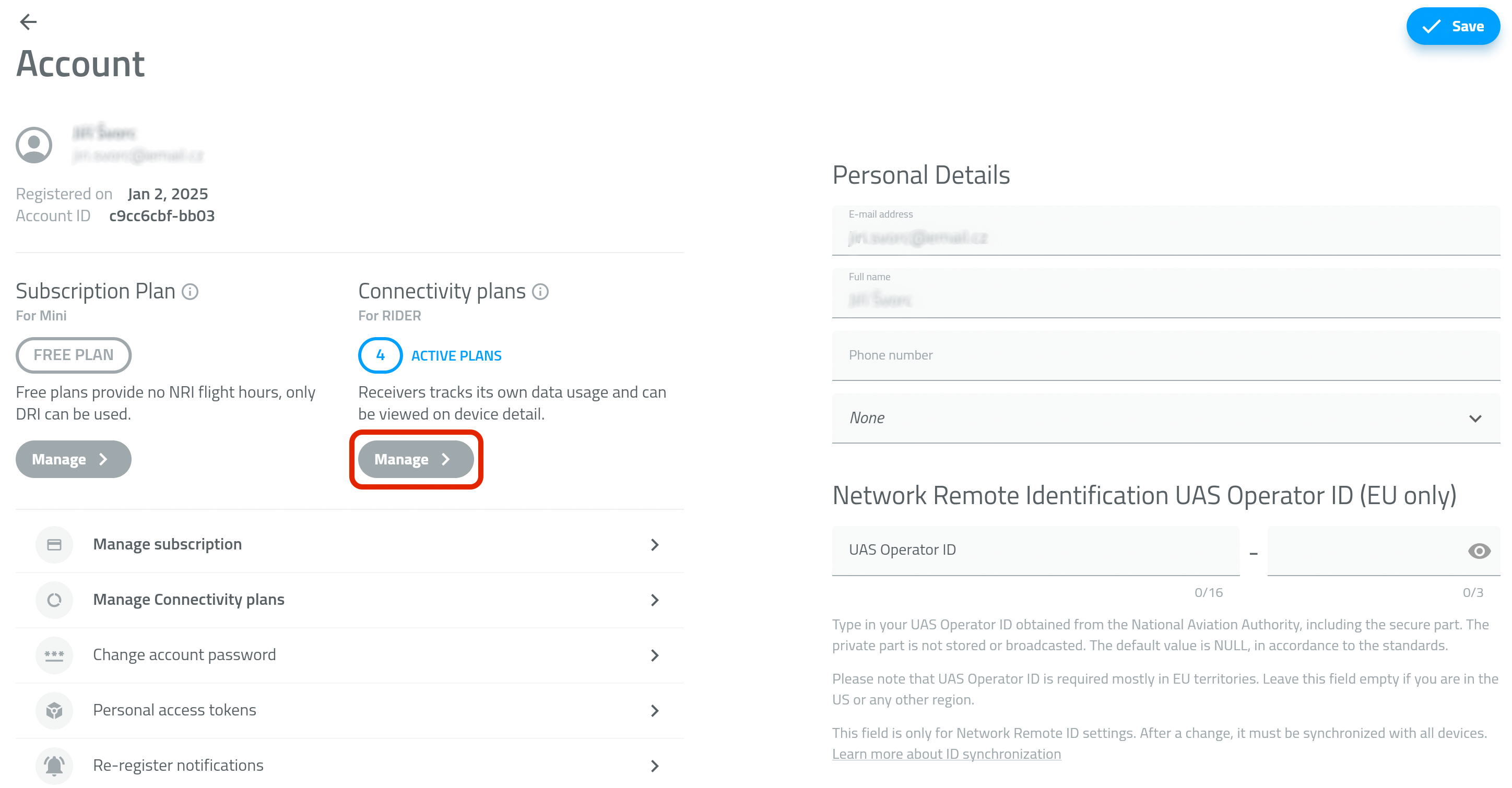
- Open the Profile tab and go to Account details.
- In the Connectivity plans section, tap Manage - PICTURE 1
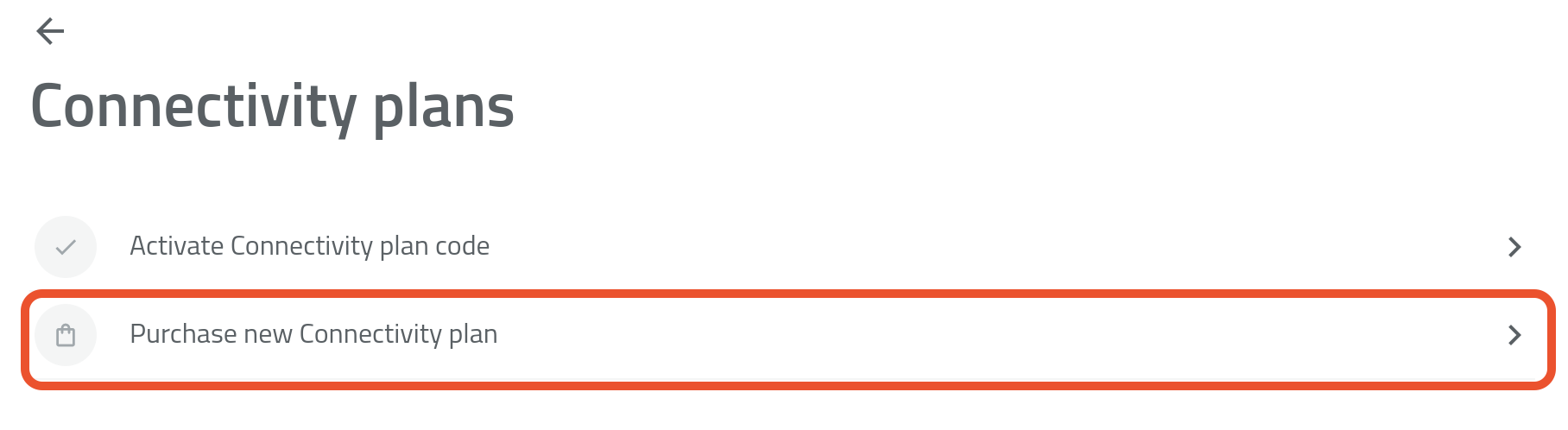
- Tap Purchase a New Connectivity Plan - PICTURE 2
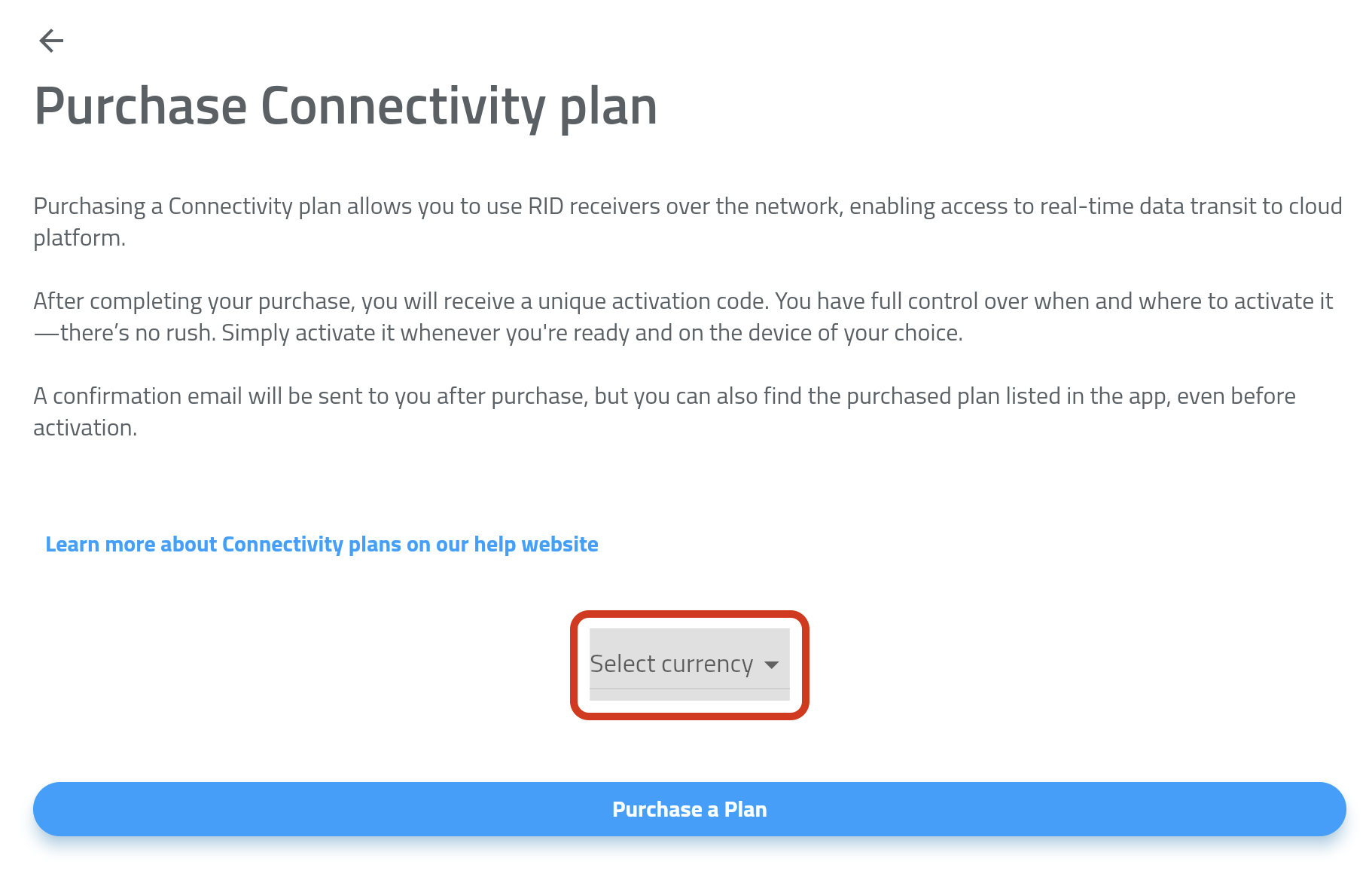
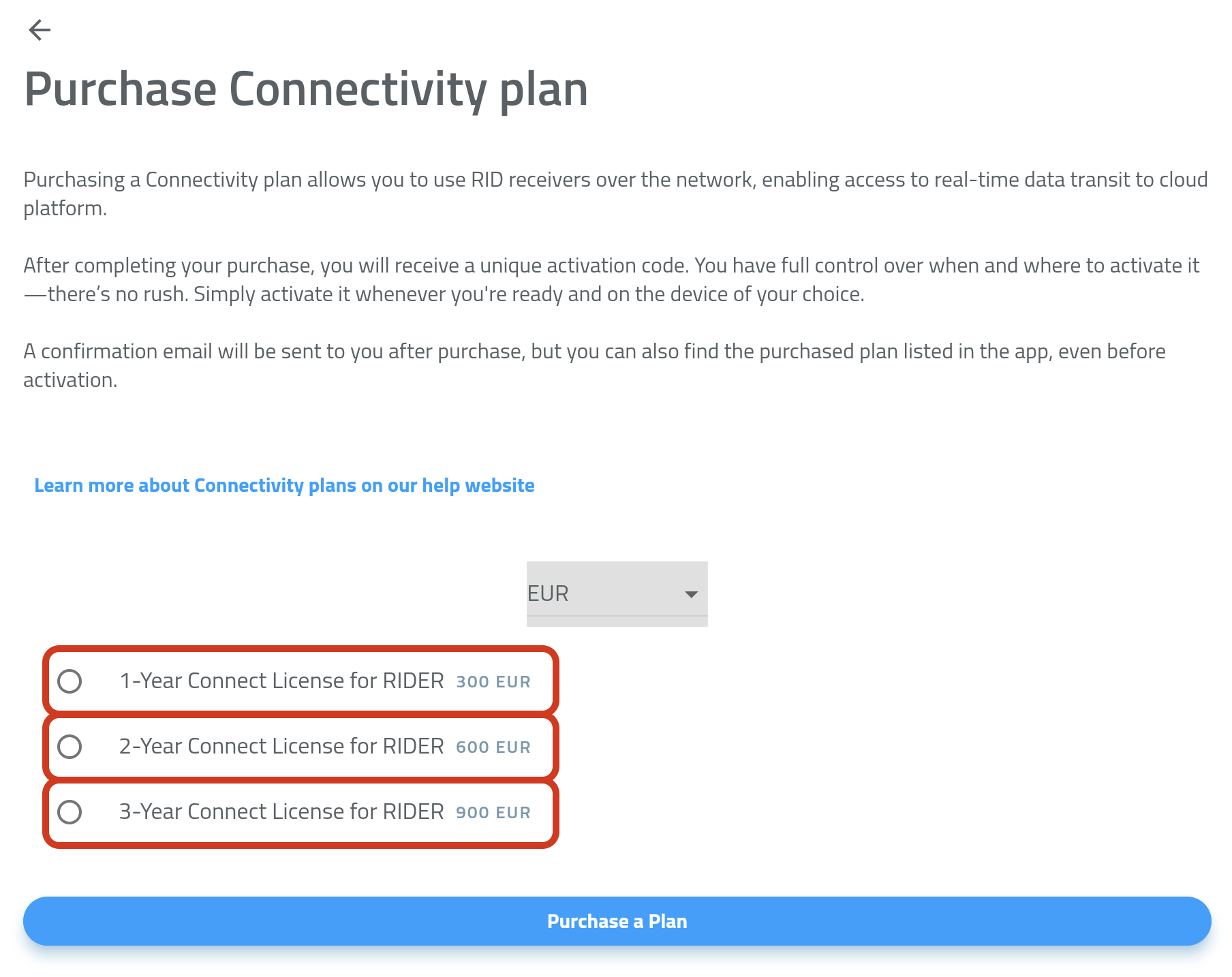
- If prompted, select your country and choose your preferred currency (EUR or USD) - PICTURE 3
- Select the Connectivity Plan you'd like to purchase (1, 2, or 3 years) - PICTURE 4
- Tap Purchase Plan.
- Complete the payment by following the instructions in the payment gateway.
Payment Methods
We accept the following payment methods:
- Credit Card
- Apple Pay
- Google Pay
All payments are securely processed via Stripe - we never store your payment information.
Every RIDER includes a free trial Connectivity Plan (valid for 2 months).
Once it expires, you can buy a new Connectivity Plan anytime to continue using Online Mode.
If you don’t purchase a Connectivity Plan, simply switch to Offline Mode via Drone Scanner (Gen. 2).


Troubleshooting Payments
If your payment doesn’t go through, check the following:
- Your card supports online/international payments
- Your billing details are correct
- Your bank has authorized the transaction (some cards require in-app confirmation)
- Apple Pay / Google Pay are linked to valid cards
If issues persist, try another payment method.
Still having trouble?
Contact support@dronetag.com and include a brief description or screenshot of the issue - we’ll help you fix it quickly.
Activating a Connectivity Plan:
- Open the Profile tab and go to Account details.
- In the Connectivity plans section, tap Manage - PICTURE 1
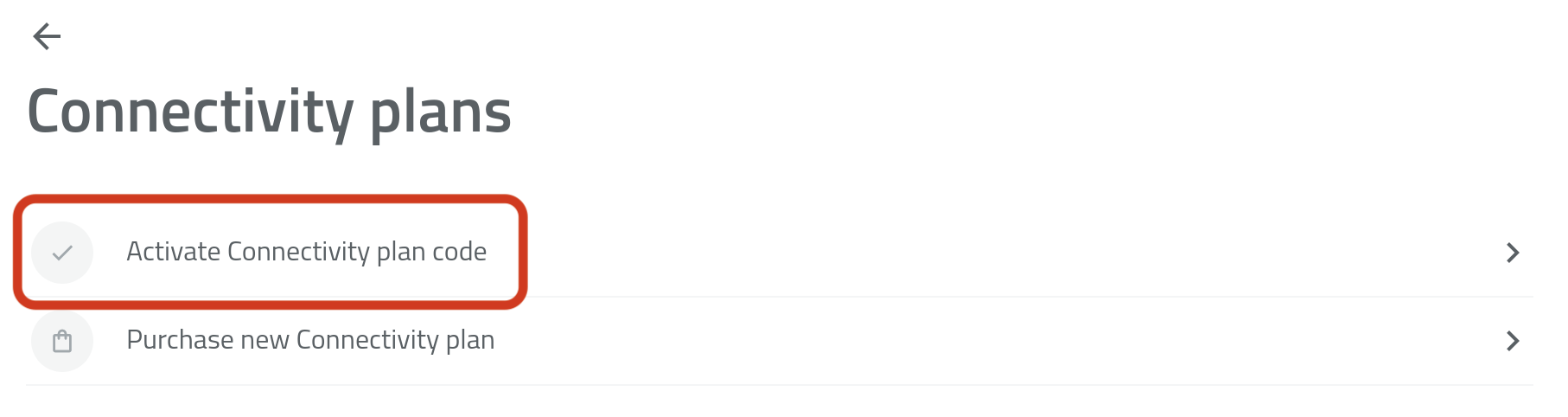
- Tap Activate Connectivity Plan Code - PICTURE 2
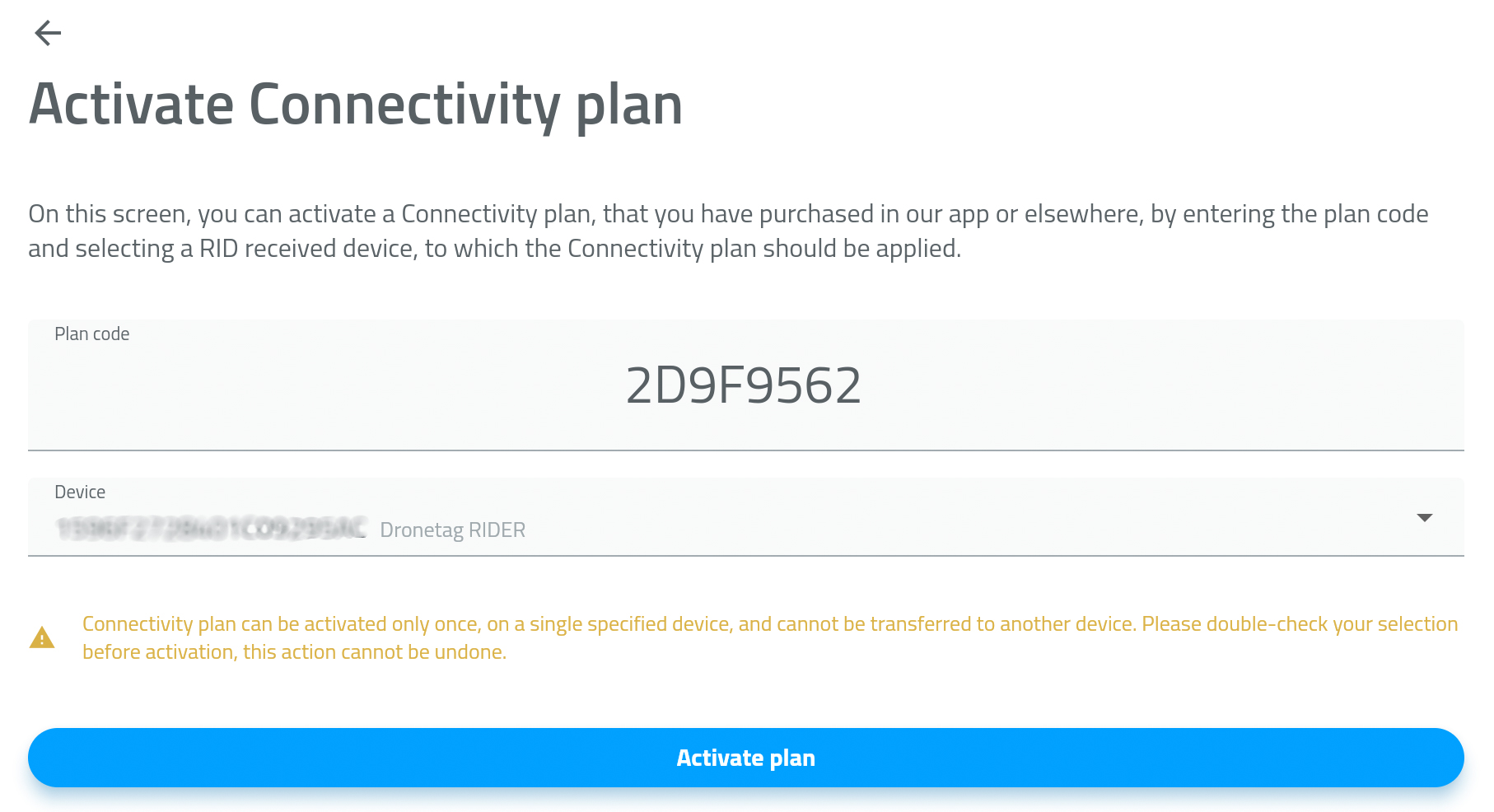
- Enter or paste the activation code from the previous screen.
- Select the RIDER device you want to activate the plan for - PICTURE 3
- Tap Activate Plan.
Your Connectivity Plan is active now.
Source pages
Every chapter of this document is a page of the Dronetag help site. Use these addresses to reach the latest version.
- 1Checking Connectivity Plan Statushelp.dronetag.cz/dronetag-app/subscriptions/RIDER/checking
- 2Purchasing a Connectivity Planhelp.dronetag.cz/dronetag-app/subscriptions/RIDER/purchasing
- 3Activating a Connectivity Plan:help.dronetag.cz/dronetag-app/subscriptions/RIDER/activating