Detection Detail & Search Improvements
All features described below are available in the Dronetag App starting from version v2.167.1, with additional updates in v2.170.2.
These features focus on detection visibility, playback, and data clarity for RIDER and Scout users.
Improved Filtering in "My Detections"
The filtering panel includes:
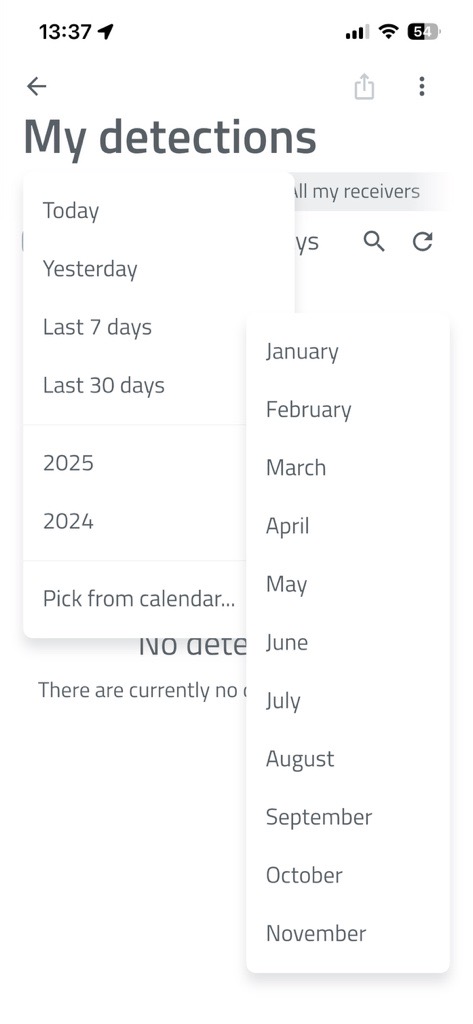
- Quick-select dropdown for entire months
- Display of "X of X detections found" during searches
How to Set Advanced Detection Filters in the Dronetag App
📱 Step-by-Step Guide
-
Open the Dronetag App and go to Profile > My Detections.
-
On this page, you will see basic filtering options:
- Filter by date
- Filter by receiver that detected the drone (RIDER or Scout)
- Filter by drone status (Seen / Unseen)
-
For advanced filtering, tap the three-dot button in the top right corner.
-
A panel will open where you can set minimum and maximum values for:
-
UA – Sensor Distance
Distance between the detected drone and the receiver (RIDER or Scout). -
Relative Height (ATO)
Drone height relative to the take-off point. -
UA – Operator Distance
Distance between the drone and its operator.
-
-
After setting your desired values, tap the Apply Filters button.
The app will then display only the detections that match your selected criteria.
Server-Side Search in Detections
- The search happens on the server for faster and more efficient results.
- You can find specific drones that flew by weeks ago without downloading everything first.
Reception Technology Display
- The app shows which reception technology received the data - such as Bluetooth, Wi-Fi, or ADS-B.
- This is especially useful for Scout units with ADS-B support.
Detection Detail: Receiver Positions
- The detection detail screen lists all receivers that participated in a detection.
- Detailed timing (which receiver caught which packet).
Detection History & Trajectory Loading
- Trajectory loading features a progress bar at the top, showing how much data has been loaded and how long it may take.
- This makes it clear to users what is happening during data retrieval.
Detection Detail View
- The app has detection detail view with an integrated player.
- You can replay an entire operation from the start and selectively hide telemetry types (for example, hide operator movement).
- The screen also includes summary information and allows you to export or delete detections directly from the app.
Seen vs. New Detections
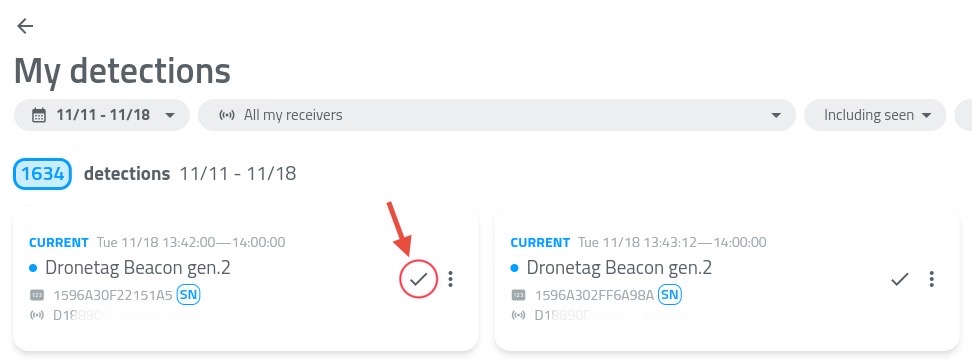
- The detections list now visually distinguishes between seen and new detections.
- You can mark a detection as "seen" to ignore it in the future.
Use the checkmark button highlighted in the picture.