
Flight Synchronization
This feature allows the user to keep flight logs and history even when the device is not connected to the cloud or doesn't have network & cloud capabilities. On this page, you will learn how to enable and use this function and how it works.
The function in the Dronetag app utilizes the new flight store function available on the latest Dronetag devices firmware, which can store flight data locally. Before you start using this feature, please ensure you have the latest version of the Dronetag App installed on your phone (2.82.0 and later) and that your Dronetag device is updated to the newest firmware version.
How to enable the function
Updating your device to the latest version will automatically enable the flight store on your device. But it's best to check if the function is enabled using the following steps:
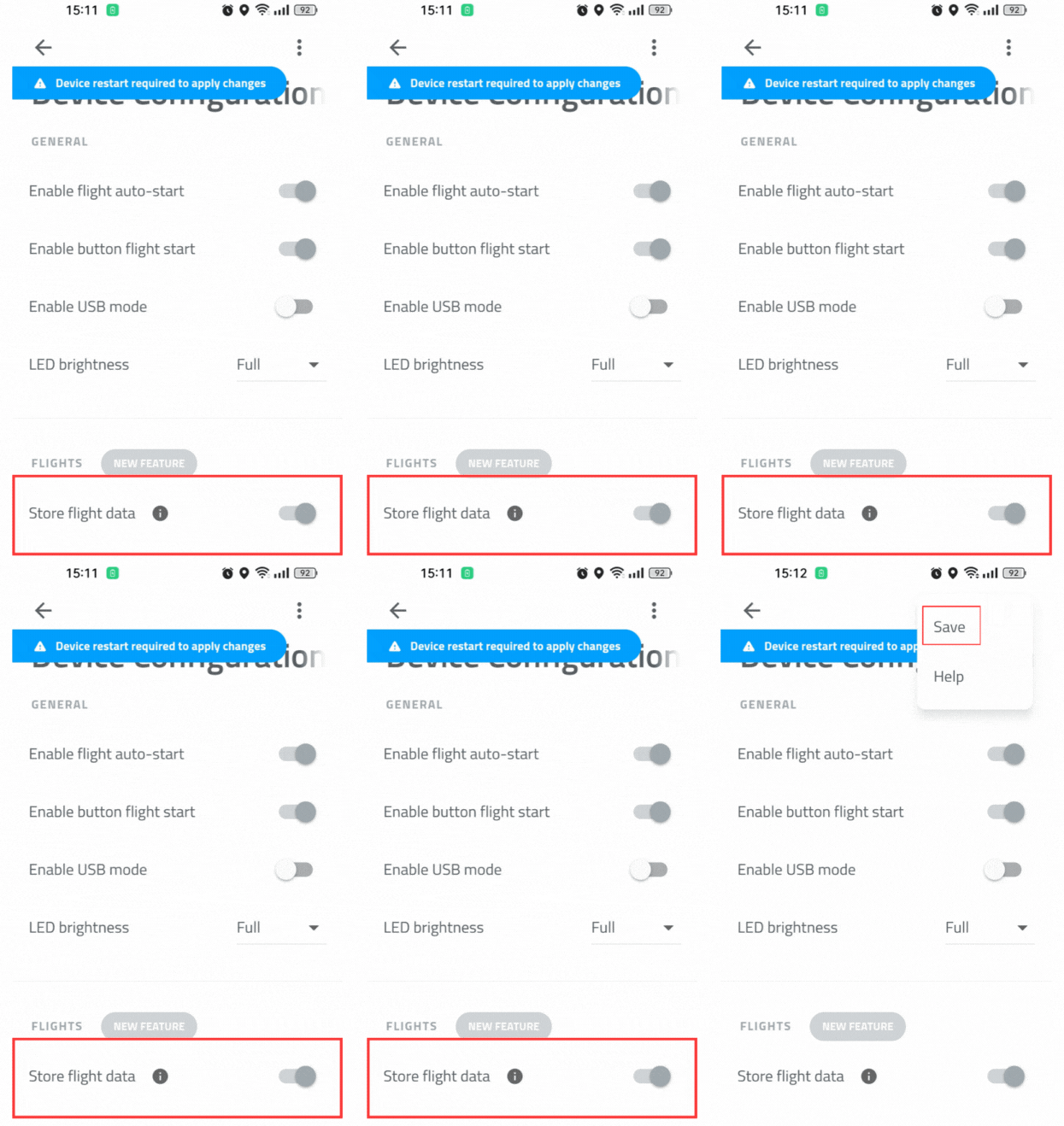
To enable the function, turn on your Dronetag device, open the Dronetag App, and navigate to "My Devices". On the device detail, navigate to "Configuration" and check that the "Enable flight store" toggle is enabled. Save the updated settings by Menu and Save, then restart the device.
You're now ready to perform flights with your Dronetag device. The flight data will be stored locally on the device's flash memory, which you can synchronize in the app later.
If you cannot find the "Enable flight store" configuration item, please check you're using the latest version of Dronetag App, you have the latest firmware installed and your device supports the function.
How to synchronize the flights
After enabling the function, your latest flights should now be stored in the device's memory and can be synchronized using your phone to the cloud platform.
To synchronize your flights, turn on your Dronetag device, open the Dronetag App, and navigate to "My Devices". On the device detail, navigate to "Synchronize flights" which will download the list of data available on your device. This action will not synchronize the data yet.
After you tap the "Synchronize all flight data" button, the synchronization process will begin. During the synchronization, please do not turn off your device or close the app.
Keep in mind that after the data are synchronized, they will be deleted from the device's memory to free up space for new flights and make the next synchronization more effective. If you use both Dronetag App and Dronetag Toolbox, we recommend synchronizing the data only in one of the apps.
After the process finishes, you should see the synchronized flights in the "My Flights" section of the app. The flights are now available on the cloud platform, and you can view them on the web app as well.
If you encountered problems during the synchronization, please check the troubleshooting section below.
How it differs from cloud flights
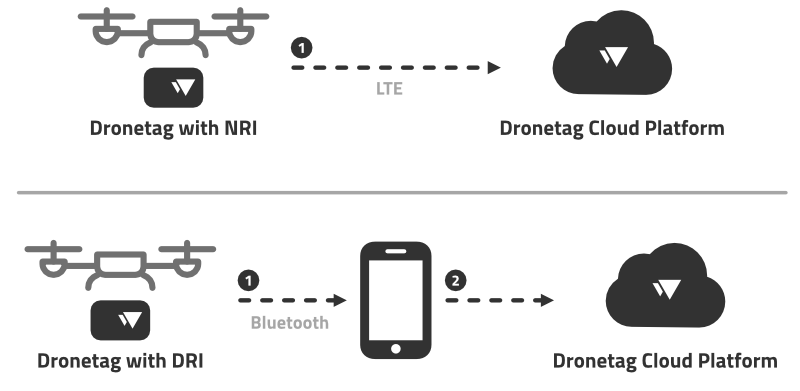
You may wonder how the Flight Synchronization feature differs from the Cloud Flights feature. The NRI-enabled devices (such as Dronetag Mini) transmit the flight telemetry data in real-time to our cloud platform. After your flight finishes, the received flight data are processed, and the flight is available on the cloud platform for you to view immediately.
DRI-only devices (such as Dronetag Beacon or Dronetag BS) cannot provide such functionality because the flight telemetry broadcasts only locally using Bluetooth. Our servers cannot receive the telemetry data, and therefore, the flight cannot be processed and stored on the cloud platform immediately after the flight is finished.
The flight synchronization allows you to store the flight data post-flight by synchronizing the data from the device using your phone.
Using NRI and flight synchronization
You can still use regular NRI flights with the Flight Synchronization feature. Don't worry. The flights won't get duplicated, and you can synchronize the locally stored data even though they have been previously transmitted over the network to the cloud platform. After synchronization, the locally stored data are "added" to the existing flights without duplications.
The flight trajectory in an existing flight will stay the same, or even become more accurate. For a flight which lost the LTE connectivity for a brief period of time — after the flight is finished, the period where the device lost the LTE connectivity will have missing flight data. After you synchronize the flight data from the device, the flight will be updated with the missing data, and the flight trajectory will be more accurate.
Troubleshooting
If you do not find your problem listed below, please see the Support and Troubleshooting Guide page for more troubleshooting options.
I can't find the "Enable flight store" configuration item
If you cannot find the "Enable flight store" configuration item, please check you're using the latest version of Dronetag App, you have the latest firmware installed and your device supports the function.
We are currently working on bringing the Flight Synchronization feature to the Dronetag Toolbox app as well. We will update this page when it's available in both apps.
Synchronizations fail to finish
If the synchronization process fails, please retry the operation. If the problem persists, try restarting the app (or your phone) and retry again. If the problem still persists, there is a chance that the data on the flash memory got corrupted. In this case, please navigate to: My devices › Device detail › Troubleshooting and tap both the "Clear offline flight records" and "Clear offline telemetry" items. This will clear the data on the flash memory, and you can try to synchronize the flights again. You will lose your flight history on the device, so please perform this step as a last resort.
Synchronization is taking too long
Large amounts of flight data stored in the memory can take up to a few minutes to transfer to your phone.